Showing posts with label XenDesktop 7. Show all posts

Monday, 25 March 2019

Xendesktop power State unknown - Vmware Xendesktop UUID GUI Mismatch

A POWER STATE UNKNOWN is quite likely to be produced in the event of change to VMs on the hyper-visor that breaks its connection with Xendesktop. This commonly occurs with a VM GUID change.

You need to ensure that the Xendesktop GUID for VMs matches the Hyper-V or Vmware GUID.


Vmware Command to View Hosted Connection GUID
$Data = get-vm $Machinename | get-view
$DataConfig = $data.vmware.vim.virtualmachineconfiginfo
$GUID = $DataConfig.Config.uuid


Vmware View GUIDs on Host Machine
get-childitem -path xdhyp:\hostingunits\hostservername -recurse | select -property name,id | Export-csv C:\host.csv

Xendesktop view GUID
Get-brokermachine -machinename uk\machinename | select Name,Hostedmachineid


If they are out sync, then you will need to set the GUID In Xendesktop to match the hypervisor with the following command

set-brokermachine -machinename domain\computername  -hostedmachineid xxx-yyyy-zzzz


Note : If the command to get the ID from Vmware fails, it can also be gained by changing directory to cd XDHYP:\connections\hypervisorname  then dir *.vm >out.txt and check inside the output for the machines ID


Wednesday, 30 January 2019

Citrix Upgrade Workflow

The following is a handy workflow for the Citrix Workflow upgrade.


Thursday, 30 June 2016

Citrix Session reliability screenshot of the user experience

The Citrix Session reliability feature has been around for ages. It has changed its behavior a bit recently dependent on Citrix Receiver Version. The following show the differences for the end-user experience. Thanks to Kaleigh at Citrix for her help with this.


Citrix Receiver 3.4 - This shows a reconnecting systray bubble. 
Citrix Receiver 3.4

 Citrix Receiver 4.0 thru 4.2 - This shows a systray bubble and grey's the window to show its not active

Citrix Receiver 4.0


Citrix Receiver 4.3 & 4.4 This shows a systray bubble with newer logo and connection interrupted message. The window goes grey the window to show its not active
Citrix Receiver 4.3


Citrix Session reliability screenshot of the user experience

The Citrix Session reliability feature has been around for ages. It has changed its behavior a bit recently dependent on Citrix Receiver Version. The following show the differences for the end-user experience. Thanks to Kaleigh at Citrix for her help with this.


Citrix Receiver 3.4 - This shows a reconnecting systray bubble. 
Citrix Receiver 3.4

 Citrix Receiver 4.0 thru 4.2 - This shows a systray bubble and grey's the window to show its not active

Citrix Receiver 4.0


Citrix Receiver 4.3 & 4.4 This shows a systray bubble with newer logo and connection interrupted message. The window goes grey the window to show its not active
Citrix Receiver 4.3


Tuesday, 7 June 2016

Citrix ICA file behaviour (some of it)

When connecting to a Citrix environment the connection between end-point and resource is established via an ICA file. (receiver for web)

The ICA file is generated by storefront and delivered back to the end-point.

ICA file Location
The ICA file get stored in the users
"%Appdata%\local\Temp" or "%LocalAppData%\Local\Citrix\Web Helper\Temp\2"

ICA files downloaded 
IE downloads - 4 ICA files
Chrome downloads - 2 ICA files
Firefox - 4 ICA Files
(Note : 4 files are downloaded for desktops and 2 for published applications)

File Assocation
The ICA file is then launched via file Association to open Citrix Receiver or Citrix Connection Manager.

File Delete
When the session is disconnected or logged off the ICA file should be deleted. This is contolled via the Default.ICA file on storefront with the setting RemoveICAfile=Yes

Testing
My testing showed that Firefox did not always clean up the ICA files on logoff or disconnect and left 1 ICA file behind. This was always true when "Connection Manager" was used to open ICA files. When Receiver was used within Firefox the ICA files removed as expected.
It was noticed that ICA files are always called ICAxxxx except in firefox with connection manager which names the files WEQ3xxxxx

Monday, 6 June 2016

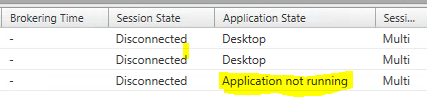
Citrix XenApp 7 - Application not running

When looking at a recent XenApp 7 environment i noticed a number of disconnected users listed with a strange session state of "Application not running"


After examining these user sessions i could see that how a lingering systray process APPVStreamingUX.exe.

This is a known process that should be placed in the LogoffCheckSysModules registry key to ensure the logoff is not held up waiting for this process to close.

Thursday, 2 June 2016

Storefront 3 - Cannot complete your request

I experienced the 1st connection to a storefront store each day gave the user a
"Cannot complete your request" message

If they user clicked to logon again it is successful.
The eventvwr showed Event ID 17 for each failure.

Typically this is caused by AV locking a file on first connection. However AV was not the culprit in my scenario. The AV Exceptions for reference are

\inetpub\temp\IIS Temporary Compressed Files 
\Windows\system32\inetsrv\w3wp.exe 
\Windows\SysWOW64\inetsrv\w3wp.exe

\Program Files\Citrix\Receiver StoreFront\Services\SubscriptionsStoreService


To correct the issue I needed to change asp.net file change notifications.
Info from Microsoft here. https://blogs.msdn.microsoft.com/tmarq/2007/11/01/asp-net-file-change-notifications-exactly-which-files-and-directories-are-monitored/

The change required is

For .NET 4 or lower

·         HKLM\Software\Microsoft\ASP.NET\FCNMode  DWORD = 1
           HKLM\SOFTWARE\Wow6432Node\Microsoft\ASP.NET\FCNMode DWORD = 1


  For .NET 4.5 and Higher
            o   Starting with the Microsoft .NET Framework 4.5 and later
            versions, FCNMode can be configured by using the httpRuntime

            settings as follows:


Friday, 29 April 2016

Citrix Storefront Tweaks

There are a number of settings that should be reviewed for a Storefront Installation.
This blog gives a great list of each along with how to set the option.

http://www.citrixguru.com/2015/07/03/storefront-3-optimizations/


Wednesday, 20 April 2016

Prevent Citrix Receiver Pop Up Asking for Logon credentials

Citrix receiver has an annoying habit of prompting for user credentials when it try's to connect to a storefront store. This can happen when a user is not even attempting to use the Reciever.

This behavior is highly annoying. Especially if there is no requirement for the user to connect to a store.

The Prompt can be disabled with the following registry key

32 Bit - HKLM\Software\Policies\Citrix
64 Bit - HKLM\Software\Wow6432Node\Policies\Citrix

Add the following DWORD entry and set to 0

EnableX1FTU  (for older Receivers the entry is EnableFTU)

Citrix Storefront AV Settings

The following are some additional Storefront AV exclusions that can be considered in the event that you are getting "Cannot complete request" error messages at logon.

\inetpub\temp\IIS Temporary Compressed Files
 \Windows\system32\inetsrv\w3wp.exe
\Windows\SysWOW64\inetsrv\w3wp.exe
\Program Files\Citrix\Receiver StoreFront\Services \SubscriptionsStoreService

A good central list of Citrix AV guidelines is available here
https://www.citrix.com/blogs/2013/09/22/citrix-consolidated-list-of-antivirus-exclusions/


Monday, 12 October 2015

Citrix XenDesktop 7 Connection Leasing (LHC replacement)

Citrix XenDesktop 7.6 Connection Leasing

Description

When Citrix changed the management architecture from IMA to FMA we faced a challenge in that database connectivity became important as without we lost management and the users could not make new connections. 

The "IMA" architecture featured a LHC (local Host Cache) Feature which kept a subset of database information on Farm Controllers. This meant a loss of connection to the database server would only impact the administrators. 

The newer "FMA" architecture had no such caching option and as such always required access to the SQL database to service admin and user requests.

This meant that we had a much greater reliance on a High available SQL than before. 

The release of XenDesktop 7.6 gave us a feature called "Connection Leasing" which gives us back a similar safety net that LHC had given us. 

The connection leasing feature supplements the SQL Server high availability best practices by enabling users to connect and reconnect to their most recently used applications and desktops, even when the Site database is not available.
Connections are cached for a lease period of two weeks. So, if the database becomes unavailable, the desktops and applications that the user launched in the previous two weeks remain accessible to that user through StoreFront. However, desktops and applications that have not been launched during the previous two-week lease period are not accessible when the database is unavailable
Connection Leasing will only occur in the event of a failure of all controllers within a site.

Database Sync

Each controller retrieves the sync information from the SQL database. This is throttled at a rate of up to 1000 leases every 10 seconds until all leases are synchronized.

Lease Files

The lease files are stored by default in
%programdata%\Citrix\Broker\Cache
The number of expected lease files can be calculated  using the following formula for Desktop accessible via LAN and Access Gateway.
(Users *2) + (Users * Desktops) + (Users * Application delivery groups) + VDAs
Leases file vary in size (0.5K – 512K) but will typically consume 4K blocks on NTFS file systems.

Example VDI Sizing

table to follow

VDA Registration

During connection leasing there is a 2 minute period at the start and end of the outage where VDAs maybe un-registered and then re-registered. This can have a performance impact with large amounts of machines registering in a short period.
In the event that some controllers remain connected to the database while others  fail, VDAs should register themselves with the working controller. Connection Leasing will only occur in the event of a failure of all controllers within a site.

SQL TimeOut

SQL queries have a default of 30s before they are deemed to have timed out, then the controllers will wait another 90s for a response, giving a total of 120 seconds before leasing will activate. This value can be altered if desired. (see parameters table)

Query Commands

The following commands can be used to view Broker Leasing information.
Set-BrokerSite -ConnectionLeasingEnabled $true|$false - Turns connection leasing on or off. Default = $true 
Get-BrokerServiceAddedCapability - Outputs “ConnectionLeasing” for the local Controller. 
Get-BrokerLease - Retrieves either all or a filtered set of current leases. 
Remove-BrokerLease - Marks either one or a filtered set of leases for deletion. 
Update-BrokerLocalLeaseCache – Updates the connection leasing cache on the local Controller. The data is resynchronized during the next synchronization.

Configurable Parameters

table to follow

Thursday, 9 July 2015

Citrix MCS Catalog Failure Troubleshooting


 The following technique can be used to troubleshoot Image Preperation errors in Citrix Xendesktop.

1.) Set reg Key
On the master machine that will be cloned logon
add the following registry key
HKLM\Software\Citrix\MachineIdentityServiceAgent\Logging = 1

2.) Shutdown
Shutdown the Master VM

3.) Snapshot
Take Snapshot

4.) Disable auto-shutdown
On the DDC powershell run the following command
Set-ProvServiceConfigurationData -Name ImageManagementPrep_NoAutoShutdown -Value $True

5.) Create catalog
Create a new catalog from the snapshot

6.) Get Logfiles
When a new VM is created in the hypervisor , logon and check the log files in the root of C:\

7.) Enable auto-shutdown
On the DDC powershell run the following command
Remove-ProvServiceConfigurationData -Name ImageManagementPrep_NoAutoShutdown

Friday, 17 October 2014

Citrix HDX flash Redirection

A customer had a strange issue with Flash Re-direction to their Windows THIN build PCs. The playback of videos on youtube seemed to stop after a few seconds.

The customer noticed when plugging headphones into the device the playback continued as normal.

As a workaround the customer set the following registry key value to disabled jack detection on the end-point.

Open registry Editor with elevated privileges
·         Go to HKEY_LOCAL_MACHINE\SYSTEM\CurrentControlSet\Control\Class\{4D36E96C-E325-11CE-BFC1-08002BE10318}\0000\GlobalSettings

·         Change the value EnableDynamicDevices to zero

Friday, 2 May 2014

Citrix VDA Standalone Installer

Citrix have the VDA component of their product contained on the XenDesktop 7 ISO.

However if you want to remove the VDA from the ISO and make a portable version that can be used by deployment teams its not as easy as just copying a MSI or files in the \VDA folder.

This is un-tested but i believe the following are the required folders to remove the VDA agent from the main installation ISO


├ AutoRun.inf

├ AutoSelect.exe

├ ProductVersion.txt

├───Citrix Receiver and Plug-ins

│   └───Windows

│       ├───ReceiverEnterpriseMetadata.xml

│       ├───ReceiverMetadata.xml

│       └───ReceiverMetadataForCitrixUpdates.xml

├───Support

│   ├───AdDeploy

│   ├───Tools

│   ├───UnregisterVDA

│   ├───VcRedist_2005

│   ├───VcRedist_2008_SP1

│   └───VcRedist_2010_RTM

├───x64

│   ├───MediaId_7C57BFC2-CAA2-4a7f-8A81-4D9DEC545EF4_x64

│   ├───MediaId_C8096DF2-8AF8-45DE-B01B-A6CC9AFBCA9C_x64

│   ├───ProfileManagement

│   ├───Virtual Desktop Components

│   └───XenDesktop Setup

└───x86

    ├───MediaId_7C57BFC2-CAA2-4a7f-8A81-4D9DEC545EF4_x86

    ├───MediaId_C8096DF2-8AF8-45DE-B01B-A6CC9AFBCA9C_x86

    ├───ProfileManagement

    ├───Virtual Desktop Components

    └───XenDesktop Setup

Tuesday, 29 April 2014

Citrix HDX Adobe Flash Redirection

Citrix Flash-Redirection allows us to redirect Adobe Flash playback to be rendered on a compatible end-point.This technique ensures an optimal experience with the end-point taking the processing hit as opposed to the CPU on the VM or server.

Flash Redirection Set-up and Configuration
In order to ensure Flash redirection can occur the following are required.

1)Adobe Flash player Installed within the VM or Xenapp server host.

2)Adobe Flash player Installed on the end-point (for IE or other depending on your browser)

3)Citrix Receiver Client (V13 or newer for Gen2 Flash redirection)

4) Flash Redirection enabled in Citrix Policy (Default=Enabled)


5)Enable Flash Optimisation on the end point in the Receiver desktop viewer preferences


Testing its working
Once enabled we need to ensure that everything is working as expected. 
The HDX monitor tool from Citrix is great for this as it can show if Flash redirection is enabled and active.
(screenshot of Flash redirection working)


To Test the experience visit a decent flash website. I found this one pretty good as it provide statistics on the playback experience. This video playback will resize based on the available bandwidth. 


Note : Newer IE Browsers failing to perform Flash Redirection in Citrix Sessions
For Internet Explorer 11 the following may be required,

HKEY_LOCAL_MACHINE\SOFTWARE\Wow6432Node\Citrix\HdxMediaStreamForFlash\Server\PseudoServer
Add the entry named IEBrowserMaximumMajorVersion with a DWORD value = 11 (decimal). The hexadecimal equivalent is 0x0000000b


Monday, 9 December 2013

Server 2012 RDS Temp License Count Reset

Deleting the following registry key seems to allow a longer grace period for temporary RDS License Allocation in Server 2012

HKLM\SYSTEM\CurrentControlSet\Control\Terminal Server\RCM\Grace Period

Friday, 2 August 2013

XenDesktop 7 and Brokering existing Virtual machines

With Xendesktop 7 we can either create machines with MCS,PVS or choose an option named "Remote PC" in Xendesktop 7 to broker a session to a virtual machine created outside of the Citrix console.

Installing the newr VDA agent to any Physical or Virtual machine means that it can be managed and brokered inside of Xendesktop and connected to with the ICA protocol.

When adding these machines and assigning a user there is however a pre-req that the assigned user must have logged onto the machine after the VDA agent has been installed. If this does not occur the icon for comnection does not appear in storefront or Web Interface.

This caught me out a little bit and i had to RDP onto the workstation to kind of enable the machine for Xendesktop use.

This could prove challenging if you have a large number of machines built that you want to assign to users as how will they connect to these the first time to finish that VDA install process.

I will post back more if i think of something.